Drakon
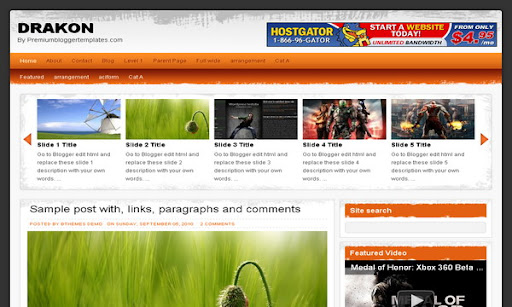
The template details
Features & setup
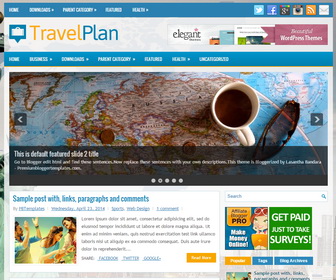
Template type : 1 Sidebar, 2 Column, 4 Column footer, Adapted from WordPress, Featured Section, Fixed width, Header Banner, Magazine, Premium, Right Sidebar, Slider, Top Navigation Bar, White, Orange
Configure Meta tags
Login to your blogger dashboard--> layout- -> Edit HTML.Now Scroll down to where you see below codes :
<meta content='DESCRIPTION HERE' name='description'/>
<meta content='KEYWORDS HERE' name='keywords'/>
Replace DESCRIPTION HERE,KEYWORDS HERE as below.
DESCRIPTION HERE:Write your blog description
KEYWORDS HERE:Write the keywords of your blog separated by comma.
How To Configure Favicon:
Login to your blogger dashboard--> layout- -> Edit HTML.Now Scroll down to where you see below code :
<link href='YOUR-FAVICON-URL' rel='shortcut icon' type='image/vnd.microsoft.icon'/>
Now replace "YOUR-FAVICON-URL" with your Favicon address/url.
Configure Featured Content Slider
There is 5 featured slides in this slider.Login to your blogger dashboard--> layout- -> Edit HTML. Find below code.
This is the code for the first slide:
<li>
<div class='mytext'>
<a href='SLIDE-1-LINK-HERE'>
<img class='sidim' src='http://1.bp.blogspot.com/_4HKUHirY_2U/TOZFBzP5MjI/AAAAAAAAH1U/lKMXgEk5D2g/s1600/1.jpeg'/>
</a>
<div class='clear'/>
<h2><a href='SLIDE-1-LINK-HERE'>Slide 1 Title</a></h2>
<p>Go to Blogger edit html and replace these slide 1 description with your own words. ...</p>
</div>
</li>
- Replace "Slide 1 Title" with your first slide title.
- Replace "Go to Blogger edit html and replace these slide 1 description with your own words. ..." with your own description.
- Replace "SLIDE-1-LINK-HERE" with your slide link(where to go when click on this slide).
- Replace "http://1.bp.blogspot.com/_4HKUHirY_2U/TNz6zHD-RMI/AAAAAAAAHVk/LxXS3tQFFx4/s1600/a.jpeg" with your slide image url.
Ok.Now we have configured frist slide in the slider.Also you can configure other 4 slides, like this.
How To Configure First(Top) Navigation Menu
Find <div id='catmenucontainer'> inside your template.(using CTRL+F).This is the beginning of the first navigation menu.Now follow the steps given here:
How To Configure a Navigation Menu
How To Configure Second Navigation Menu
Find <div id='foxmenucontainer'> inside your template.(using CTRL+F).This is the beginning of the first navigation menu.Now follow the steps given here:
How To Configure a Navigation Menu
How To Add a Header Logo
You can add a header logo for this template easily in the "Page Elements" section(Blogger Default Method).
If you have any problem regrading this template,leave a comment below.
Important !!!:
Please do not remove the footer credit. I spend several hours to create this blogger template. So that you can use it for your blog. All I ask is, stay the credit intact.
License:
This free Blogger template is licensed under the Creative Commons Attribution 3.0 License,which permits both personal and commercial use.
However, to satisfy the 'attribution' clause of the license, you are required to keep the footer links intact which provides due credit to its authors. For more specific details about the license, you may visit the URL below:
http://creativecommons.org/licenses/by/3.0/
Ready to install?
Back up your current Blogger template first, then follow this template’s own setup notes.
Installation guide → Ask a question →Find your next design
A template that fits your blog.
Choose your style, layout and features to explore the collection.
Keep exploring
how can i increase the size of the header height if I want to incorporate my own blogger header?
my header is a bit larger than the one in the template height
hi lasantha bandara, your template is very amazing and i'm very interesting to use it. But I've a little problem to use it. I can't use the jump break function. Can u show me how to activate that function? Thanks..:)
hyy...
I very like this template....
But, i have a problem...
How to minimize the image on the post....
Please, help me....
Contact me on my guest book in my blog...
mirror no hay
how can i resize the image in the post properly? when i have a portrait type image, it appears very stretched. also, i don't see a link for the jump break in the home page, below the post, like "read more.."
How do I get the slideshow only at home (home page of the blog)?
Como eu deixo o slideshow só na home do blog???
lunmayan keren nih template bro
thx lasantha bandara.. i like ur templates..!!
I like this template... I used it.. Thx very much