SkyCity
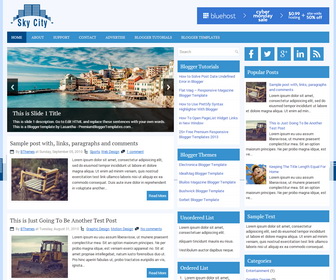
The template details
Features & setup
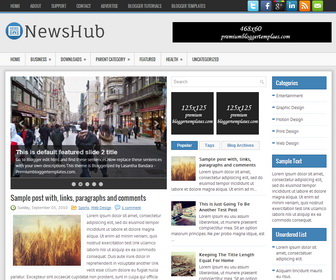
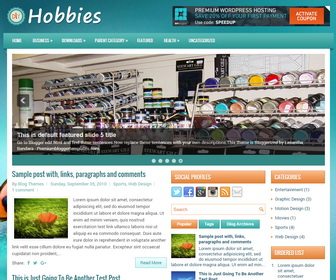
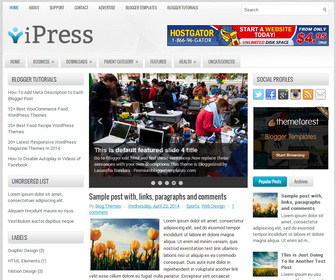
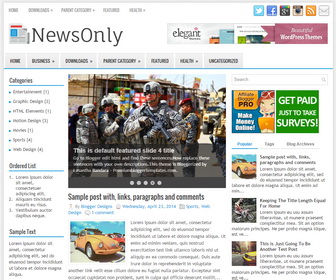
SkyCity is Beautiful, Responsive, 3 Columns Blogger Template for your Blog. SkyCity Blogger Template has a jQuery Slider, Navigation Menus, 468x60 Header Banner, Related Posts, 4 Columns Footer and More Features.
Template type : 2 Sidebar, 3 Column, 4 Column footer, Adapted from WordPress, Blue, Elegant, Featured Section, Fixed width, Responsive, Fresh, Header Banner, Magazine, Premium, Related Posts, Right Sidebar, Slider, Top Navigation Bar, Web 2.0, White
How to Configure SkyCity Blogger Template
Read instructions given below to configure SkyCity Blogger Template.
How To Add Links to Top Navigation Menu
Go to "Layout". Click on "Edit" link of "Edit This Menu" widget.
Now add your links to that link list widget.
How To Configure Featured Content Slider:
Find this in "Edit HTML":
<div class='pbtcb_container'>
<ul class='pbtrslides' id='pbttopslider'>

<!-- Slide 1 Code Start -->
<li>
    <a href='ENTER-SLIDE-1-LINK-HERE'><img src='https://2.bp.blogspot.com/-4xu3_2rdEkE/U0EtSSlQWJI/AAAAAAAAIF4/TyH5YwMfm_s/s1600/slide-image-1.jpg'/></a>
    <div class='pbtcaption'>
	<h3>This is Slide 1 Title</h3>
	<p>This is slide 1 description. Go to Edit HTML and replace these sentences with your own words. This is a Blogger template by Lasantha - PremiumBloggerTemplates.com...</p>
	</div>
</li>
<!-- Slide 1 Code End -->

<!-- Slide 2 Code Start -->
<li>
    <a href='ENTER-SLIDE-2-LINK-HERE'><img src='https://1.bp.blogspot.com/-u_jExcC2hII/U0EtSAZK9SI/AAAAAAAAIFw/6A7Q_YfFjrc/s1600/slide-image-2.jpg'/></a>
    <div class='pbtcaption'>
	<h3>This is Slide 2 Title</h3>
	<p>This is slide 2 description. Go to Edit HTML and replace these sentences with your own words. This is a Blogger template by Lasantha - PremiumBloggerTemplates.com...</p>
	</div>
</li>
<!-- Slide 2 Code End -->

<!-- Slide 3 Code Start -->
<li>
    <a href='ENTER-SLIDE-3-LINK-HERE'><img src='https://2.bp.blogspot.com/-OV7lKZMymFg/U0EtSaM-vdI/AAAAAAAAIF0/YUnPHPkepdM/s1600/slide-image-3.jpg'/></a>
    <div class='pbtcaption'>
	<h3>This is Slide 3 Title</h3>
	<p>This is slide 3 description. Go to Edit HTML and replace these sentences with your own words. This is a Blogger template by Lasantha - PremiumBloggerTemplates.com...</p>
	</div>
</li>
<!-- Slide 3 Code End -->

</ul>
</div>
There are 3 slides in the slider. You can add or remove more slides if you want.
Now replace,
"ENTER-SLIDE-X-LINK-HERE"s with your real slide link,
"This is Slide X Title" with your real slide title,
"This is slide X description. Go to Edit HTML and replace these sentences with your own words. This is a Blogger template by Lasantha - PremiumBloggerTemplates.com..." with your real slide description,
Slide image URL,
for each slide. (X = 1 or X = 2 or X = 3)
How To Configure Social Buttons
Find this in "Edit HTML":
<div class='social-icons-box clearfix'> <a href='http://www.facebook.com/' rel='nofollow' target='_blank' title='Facebook'><img alt='facebook' src='https://3.bp.blogspot.com/-hUql1DZIATk/Uz9WkK2wQsI/AAAAAAAAIC0/mINjpbj0rCY/s1600/icon-fb.png'/></a> <a href='http://twitter.com/' rel='nofollow' target='_blank' title='Twitter'><img alt='tweeter' src='https://3.bp.blogspot.com/-KAGqIOiUAA4/Uz9WmMr5pAI/AAAAAAAAIDw/hVrqVfKOwJ8/s1600/icon-tweeter.png'/></a> <a href='https://plus.google.com/' rel='nofollow' target='_blank' title='Google Plus'><img alt='google' src='https://4.bp.blogspot.com/-mzq7rUSHI_w/Uz9Wk8-O1nI/AAAAAAAAIDE/HGCm6FA17EI/s1600/icon-google.png'/></a> <a href='http://linkedin.com/' rel='nofollow' target='_blank' title='Linded In'><img alt='linked in' src='https://2.bp.blogspot.com/-Hg4h-gIumaM/Uz9WlLsCA7I/AAAAAAAAIDQ/KEyn3gjw6Lc/s1600/icon-in.png'/></a> <a expr:href='data:blog.homepageUrl + "feeds/posts/default"' rel='nofollow' target='_blank' title='RSS'><img alt='rss' src='https://2.bp.blogspot.com/-r39AciizFmE/Uz9WltEeYBI/AAAAAAAAIDY/WBTmjbWeMyE/s1600/icon-rss.png'/></a> </div>
Add your own social links replacing current social network URLs.
How To Add a Header Logo:
You can add a header logo for this blogger template easily in the "Layout" section (Blogger Default Method).
Important !!!:
Do not remove the footer credits. This SkyCity Blogger template is free for both personal and commercial use. However, you are required to keep the footer links intact which provides due credit to its designers and authors.
Ready to install?
Back up your current Blogger template first, then follow this template’s own setup notes.
Installation guide → Ask a question →Find your next design
A template that fits your blog.
Choose your style, layout and features to explore the collection.
Keep exploring